Backing Up Your Files & Photos
Phones get lost, laptops get stolen, hard drives fail and ransomware locks files. A backup is a separate copy of your important files that lets you recover. Most people only think about backups after they’ve lost something they can’t replace.
- Everyone
- Small businesses
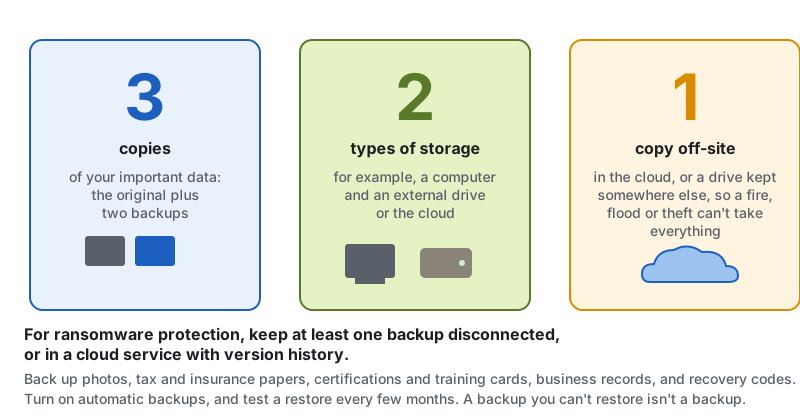
The 3-2-1 rule
- 3 copies of your important data (the original plus two backups)
- 2 different types of storage (for example, a computer and an external drive or cloud)
- 1 copy off-site (cloud, or a drive kept somewhere else), so a fire, flood or theft can’t take everything
For ransomware protection, keep at least one backup disconnected or in a cloud service with version history, so infected files can’t overwrite it. See Ransomware.
What to back up
- Family photos and videos
- Tax returns, insurance, medical and legal documents
- Pay stubs, certifications and training cards (scan them)
- Business records: estimates, contracts, invoices, payroll, drawings and safety records
- Password manager recovery codes (stored securely)
Options
| Option | Good for | Watch out for |
|---|---|---|
| Phone cloud backup (iCloud, Google) | Automatic backup of photos, contacts and settings | Storage limits; protect the account with 2FA |
| Cloud backup or sync services | Automatic, off-site, version history | Sync alone can copy deletions and ransomware; use version history |
| External hard drive | Large, cheap local backups | Keep it unplugged when not backing up; store it safely |
| Business backup services | Servers, multiple computers, compliance | Test restores regularly |
Make it automatic
- Turn on automatic backups on phones and computers.
- Set a reminder to plug in the external drive weekly or monthly.
- Check backups after big changes, like a new phone.
Test it
A backup you can’t restore isn’t a backup. Every few months, try restoring a file or folder to make sure it works.
Standards & references
Last updated: